

For infrastructure hosted by AWS, if you need to manage the deployment of an instance or application/service, you can take the approach of having a dedicated EC2 Ansible instance that performs all the necessary steps. This tutorial shows you how to install Ansible in AWS ec2 (EC2 Amazon Linux2) instance.
Prerequisites:
The AWS instance must be running and accessible.
Install ansible in AMI instance:
In AMI instance:
For Amazon Linux, Ansible can be installed using pip. You can use the following commands:
Use $ sudo -i to switch the ec2 user to root.
$ sudo yum-config-manager --enable epel
$ yum repolist                                    🡪 ( you should see epel repo)
$ yum install ansible -y
$ ansible --version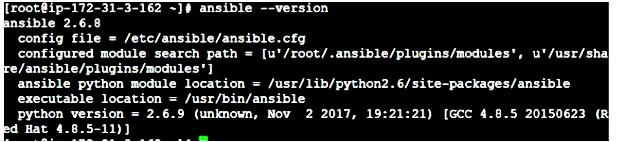
- create a new user using the below command
$ useradd -d /home/ansi -m ansi- create a password for ansi
$ passwd ansi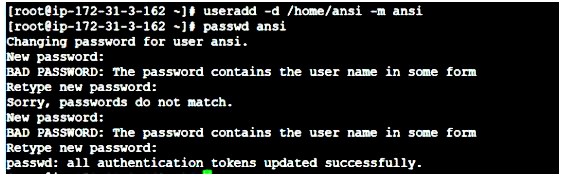
[root@ip-172-31-3-162 ~]# passwd -x -1 ansi
Adjusting aging data for user ansi.
passwd: Success
[root@ip-172-31-3-162 ~]#
Add this user in the sudoers file.
Give the permission to edit the sudoers file using root user
[root@ip-172-31-3-162 ~]# sudo chown root:root /etc/sudoers
[root@ip-172-31-3-162 ~]# sudo chmod 0755 /etc/sudoers

$ vi /etc/sudoers
Add the below content and save it.
## ANSIBLE ADMIN USER
ansi ALL=NOPASSWD: ALL
3. Then log in to the instance as an ansi user.
$ su - ansi
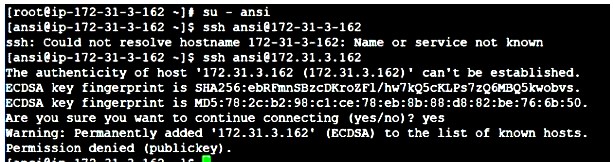
4. Do shh on this user
$ ssh ansi@<ipaddress>
5. We are currently experiencing a permission denial issue (Publickey). You need to add an SSH key to resolve this issue
6. let’s generate ssh-key
$ ssh-keygen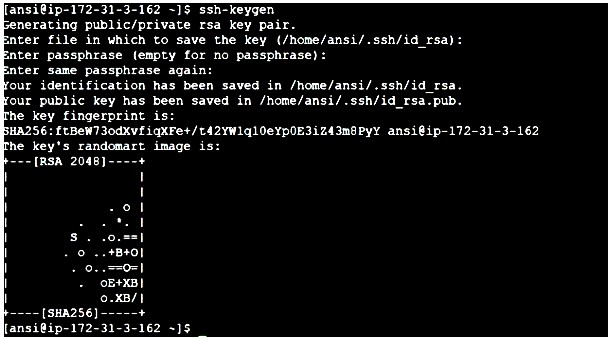
[ansi@ip-172-31-3-162 ~]$ chmod 700 .ssh/
[ansi@ip-172-31-3-162 ~]$ chown ansi:ansi .ssh/
Then go to the .ssh folder and create a file called “authorized_keys“.
[ansi@ip-172-31-3-162 ~]$ cd .ssh/
[ansi@ip-172-31-3-162 .ssh]$ vi authorized_keys

Paste the contents of the pub key (id_rsa.pub) into the authorized_keys file and save.
[ansi@ip-172-31-3-162 .ssh]$ chown ansi:ansi authorized_keys
[ansi@ip-172-31-3-162 .ssh]$ chmod 600 authorized_keys
Let’s copy the ssh key
$ ssh-copy-id ansi@<ipaddress>
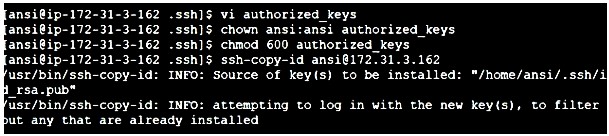
Change the ownership of etc/ansible folder to ansi
[ansi@ip-172-31-3-162 ansible]$  sudo chown -R ansi:ansi /etc/ansible
[ansi@ip-172-31-3-162 ansible]$ sudo chmod -R 777 /etc/ansible/
Next, let’s add and save the IP host file under the local group
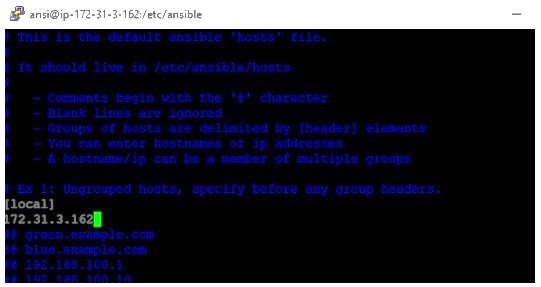
Then test the ping command
$ ansible –m ping all
Nodes
Add the node ips in hostfile
Copy the .pem conternt in another file (server.pem)
Add hostfile:
[server]
172.31.24.192
[node]
172.31.21.227 ansible_user=ec2-user
[ansi@ip-172-31-24-192 ansible]$ chmod 600 server.pem
[ansi@ip-172-31-24-192 ansible]$ ansible -m  ping node --private-key=server.pem
[ansi@ip-172-31-24-192 ansible]$ ansible -m ping all  --private-key=server.pem
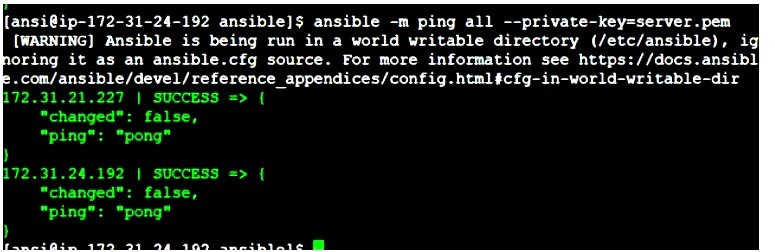
testing ansible
This is another way for new users.
Allowed key files in the node must be allowed
chmod 777 authorized_keys
[ansi@ip-172-31-24-192 ansible]$ scp -i server.pem /home/ansi/.ssh/id_rsa.pub ec2-user@ip-172-31-21-227.ap-south-1.compute.internal:/home/ansi/.ssh/authorized_keys